GPU at 100% but Your AI Video Render Is Stuck? Check the Power Draw
Two Wan 2.2 renders, same image, same prompt, same settings. Only the clip length changed by 4 frames. Task Manager said "100% GPU" for both. One finished; the other was effectively frozen. The only number that told them apart was power draw.
The test
| Part | What I used |
|---|---|
| GPU | NVIDIA RTX 5070, 12GB, PCIe 5.0 x16 |
| System | 64GB DDR5-6000, NVMe SSD, Windows 11, freshly rebooted |
| Software | ComfyUI 0.37 (dynamic VRAM on), run through Loomance, Stable Scene workflow |
| Model | Wan 2.2 I2V A14B fp8, 12 + 12 steps (lightx2v LoRA) |
| Input | Same photo and prompt for every run (a woman drinking coffee by a window) |
| Logging | nvidia-smi every second: utilisation, power, temperature, VRAM |
| Running apps | Only Loomance, Task Manager and the logging window |
Why 53 and 57 frames? Wan 2.2 uses frame counts of the form 4n+1 (49, 53, 57, 61…). From months of rendering on this card I knew the comfortable limit at 1536×864 sits around 55 frames. So I ran one count just below it and one just above.
The results
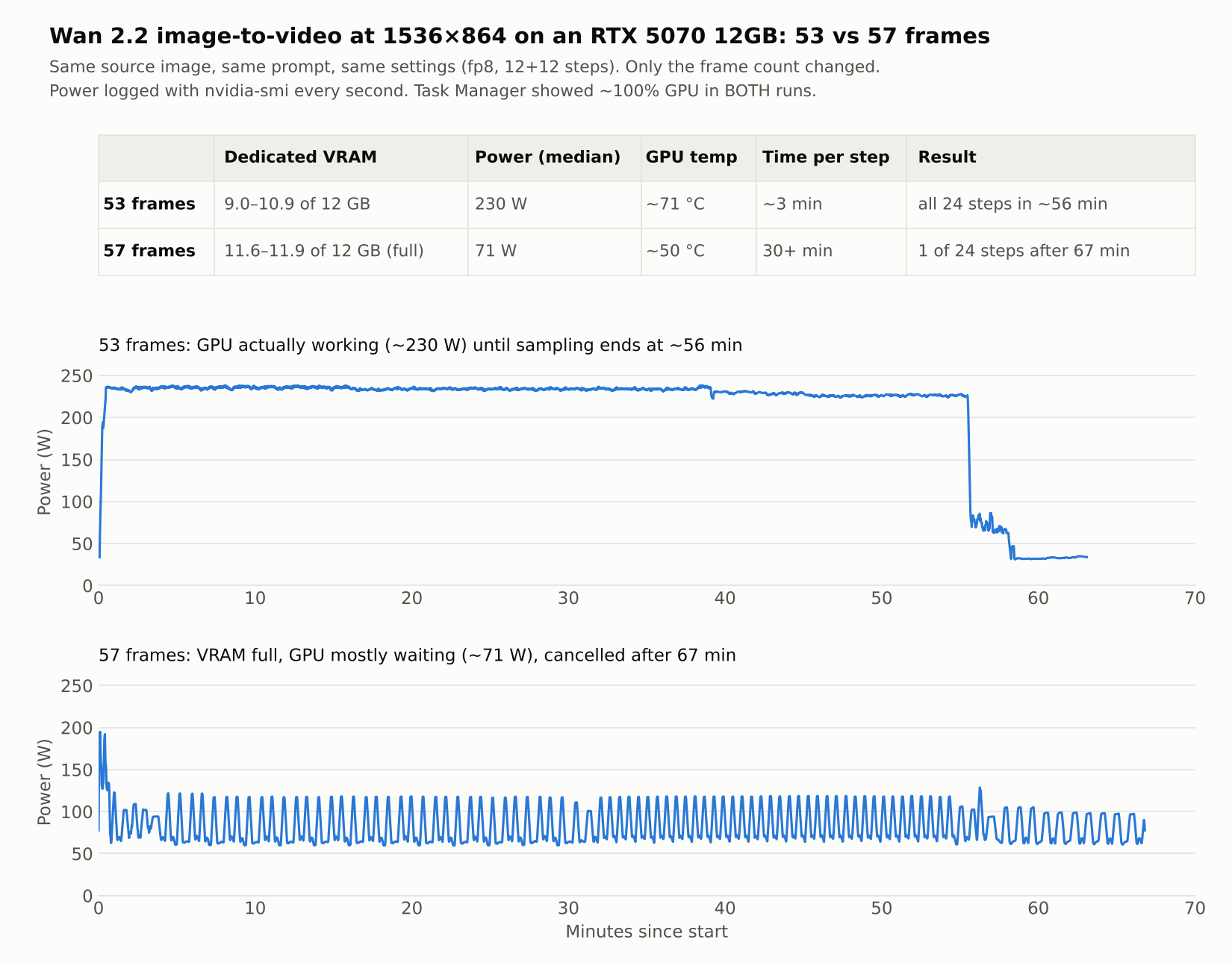
| 1536×864 | 53 frames | 57 frames |
|---|---|---|
| Dedicated VRAM | 9.0–10.9 of 12 GB | 11.6–11.9 of 12 GB (full) |
| Task Manager GPU | ~100% | ~100% |
| Power draw (median) | 230 W | 71 W |
| Time above 150 W | 96% | 1% (first minute only) |
| GPU temperature | ~71 °C | ~50 °C |
| Time per sampling step | ~3 min | 30+ min |
| Result | all 24 steps in ~56 min | 1 of 24 steps in 67 min, cancelled |
Four more frames is 7.5% more work. It made each step roughly ten times slower. ComfyUI's own estimate for the 57-frame run was over five hours for the first half of sampling alone.
What a stall looks like up close
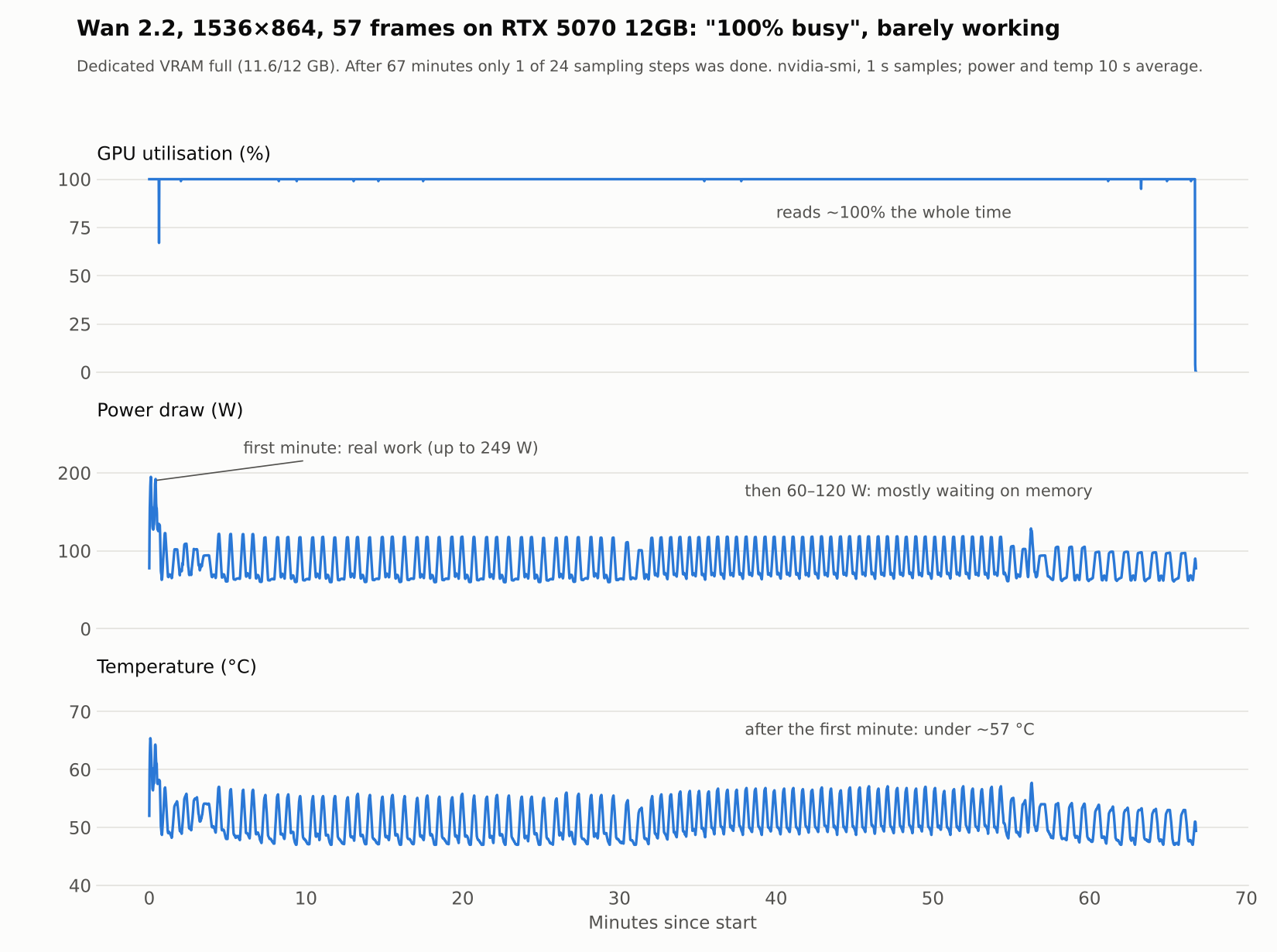
The pattern is regular: roughly once a minute, power jumps for a few seconds and then drops back to ~65 W. That is the GPU getting a chunk of model weights, computing briefly, and then waiting for the next chunk. With the VRAM full, ComfyUI has to keep evicting and reloading parts of the 14GB model over PCIe, and the card spends almost all its time idle while still reporting 100%.
I had noticed this by eye long before measuring it: a render looks alive, utilisation is maxed, but the GPU temperature sits around 50 °C instead of the usual 65–70 °C. That temperature gap turned out to be a reliable warning sign.
Why "100%" is misleading
The utilisation number in Task Manager and nvidia-smi measures how much of the time the GPU had at least one job running. A job that is waiting on a memory copy still counts. So a GPU that is busy waiting and a GPU that is busy computing both read 100%. Power draw is different: the compute units only draw heavy power when they actually do math. On this card, real Wan 2.2 work sits at 225–235 W. A stall sits at 60–120 W.
How to check your own GPU
Open Command Prompt and run this while a render is going. It writes one line per second to a file on your desktop. Stop it with Ctrl + C.
nvidia-smi --query-gpu=timestamp,utilization.gpu,power.draw,temperature.gpu,memory.used --format=csv -l 1 > "%USERPROFILE%\Desktop\gpu-log.csv"- Working normally: power near your card's usual load (watch a short 832×480 render first to learn it), temperature climbing to its normal load level.
- Stalled on memory: utilisation ~100%, but power less than half of normal and temperature near idle, often with a regular pulse.
- Quick visual check without logging: watch the GPU temperature in Task Manager. If it is 15–20 °C below where it usually sits during renders, something is wrong.
What to do about it
- Stop it early. A stalled render can run for hours. If the first sampling step takes many times longer than usual, cancel it.
- Drop 4–8 frames. Right at the edge, a small change moves you back to the working side.
- Generate fewer frames and interpolate. RIFE doubles the frame count in seconds. 53 frames become a smooth 105-frame clip.
- Or lower the resolution. At 832×480 the same card rendered 81 frames in ~16 minutes using only ~8 GB of VRAM. See the VRAM and RAM test.
- Free up VRAM. Close browsers, games and screen recorders. Near the limit, a few hundred MB decide which side you land on.
Is high resolution worth the time?
A stall is the extreme case, but even when it fits, high resolution costs far more than the pixel count suggests. Here are two finished renders from the same test, same image and prompt:
| Same card, same image | 832×480 · 81 frames | 1536×864 · 53 frames |
|---|---|---|
| Total render time | ~16 min | ~58 min |
| Clip length (after interpolation, 24 FPS) | 6.7 s | 4.4 s |
| Render minutes per second of video | ~2.4 | ~13 |
| Peak dedicated VRAM | ~8 GB | ~10.9 GB |
1536×864 has 3.3 times the pixels, but each second of finished video cost about 5.5 times as much render time. What you get for it is detail:

At 1536×864 the freckles, eyes, necklace and knit texture are crisp and the steam survives the whole clip. At 832×480 the scene and motion are just as good, but fine detail is softer. Whether that is worth five times the wait is your call: fast drafts and lots of variations at 832×480, or fewer, sharper final clips at 1536×864. A common middle path is to find the shot you like at 832×480, then re-render only that one in high resolution.
The limit moves
Earlier this month the same 1536×864, 57-frame render finished on this PC in about 67 minutes, with a different source image and an older setup. Today it stalled. Being right at the edge means small changes in ComfyUI version, drivers, workflow or background apps decide whether the render fits. That is exactly why it is worth watching power draw instead of trusting a frame count from someone else's PC, including mine.
Do other tools hit the same wall?
Not necessarily. This limit applies to ComfyUI-style workflows that keep the model in VRAM. Some all-in-one Wan 2.2 tools work differently, and we tested one on the same PC. Here is the trade-off we measured:
- Less VRAM, longer clips. The model stays in system RAM and is streamed to the card in pieces. It rendered 1920×1088 with 81 frames without stalling, using only about 4–5 GB of VRAM, but around 50 GB of RAM.
- Much faster in "lightning" mode. Distilled 4-step models finished an 832×480 clip in about 1.5 minutes instead of ~13–16.
- More deformations and changed characters. With the same image and prompt, the fast mode added floating artifacts, smoothed skin and lost freckles, and moved a "static" camera. Even at full 30 steps, a scene with six dogs showed melting heads, merged puppies and redrawn faces in several of five runs.
So the choice is not only "does it fit in VRAM", but also how much of the original image and characters you need to keep. A full side-by-side comparison is coming in a separate article.
How Loomance fits in
All renders were made with Loomance, a free desktop app I build that installs ComfyUI and Wan 2.2 and runs these workflows from one window. It already shows GPU utilisation and temperature during a render, and this test is the reason a future version will warn you when a resolution and frame count are likely to overflow your VRAM. The measurements themselves are plain ComfyUI + Wan 2.2, so they apply to any ComfyUI setup.
Tools and sources
- Wan 2.2, the open-source video model by Alibaba's Wan team
- ComfyUI, the engine used for every render
- nvidia-smi documentation, NVIDIA's command-line monitoring tool
- Wan 2.2 on an 8GB GPU? What real tests show about VRAM and RAM, the earlier memory test on the same PC
Frequently asked questions
Try Wan 2.2 on your own GPU
Loomance is free to use (ad-supported) and renders locally on your NVIDIA GPU. It sets up ComfyUI and the models for you. No node graphs, no cloud uploads.
Download free